How to Add Text-to-Speech to WordPress in 2026
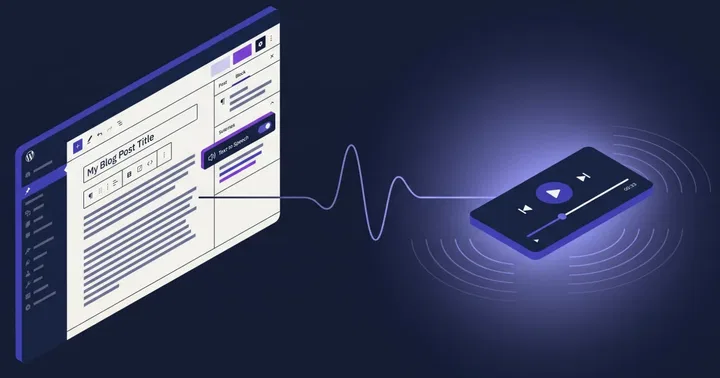
Adding text-to-speech to WordPress in 2026 takes about 15 minutes. You install a plugin, connect it to a cloud voice engine, pick a narrator, and audio appears on every post. The hard part used to be voice quality. That is solved now. Generative AI voices sound human, and the workflow is mostly clicking through settings.
This tutorial walks through the full setup using Text to Speech – TTSWP, the plugin we build. We cover install, connection, voice selection, automatic generation, and the small details that catch people: caching, multilingual sites, and what to do when audio does not appear.
What you need before starting
Three things. A WordPress site you can install plugins on, an email address for the TTSWP account, and roughly 15 minutes. No coding, no server access, no API key juggling unless you want to bring your own.
- WordPress 5.8 or newer
- Admin access to install plugins
- An email for the free TTSWP account
That is it. The quick start guide covers the same ground in checklist form if you prefer that format.
Step 1: Install the plugin
Open your WordPress admin, go to Plugins → Add New, and search for Text to Speech – TTSWP. Click Install, then Activate. You can also download it directly from the WordPress.org plugin page and upload the zip if your host blocks the plugin directory.
After activation, a new TTSWP item appears in the admin sidebar. The install docs show the exact screens if you want to compare against your setup.
Step 2: Connect to your TTSWP account
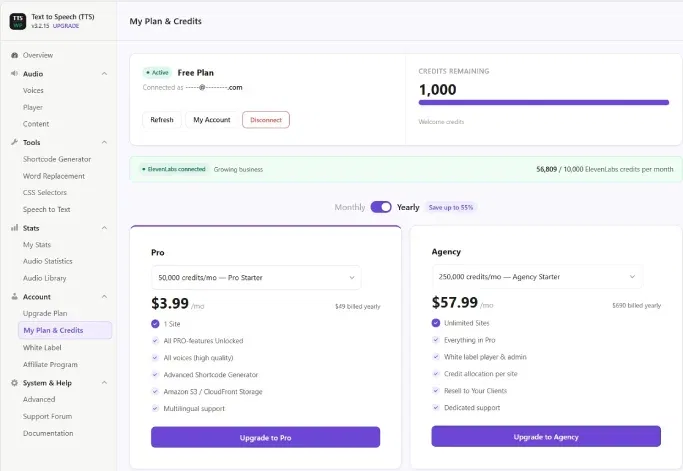
Click the TTSWP menu item. The first screen prompts you to connect. Sign up for a free account, then paste the connection key the plugin asks for. The free tier covers a limited monthly character count, which is enough to test on real posts before deciding on a paid plan.
Step-by-step screens are in the connection docs. If you already have an ElevenLabs API key and want to use your own credits instead of TTSWP credits, the bring-your-own-key option works too.
Step 3: Pick a voice
This is where 2026 differs from 2020. The voice library uses generative AI models from ElevenLabs, which means the narrator sounds like a person reading, not a machine spelling out words. Prosody, pauses, emphasis on the right syllables. It works.
Go to the voices section in the plugin. Preview a few. Pick one that matches your content tone. A finance blog probably wants a calmer, lower-pitched voice. A travel site might want something warmer. We tested about a dozen voices on the same article and the difference in listener experience was larger than we expected.
The voices documentation covers filtering by language, gender, and style. If you write in multiple languages, the language-to-voice mapping page explains how to assign a different narrator per locale.
Step 4: Turn on auto-generation
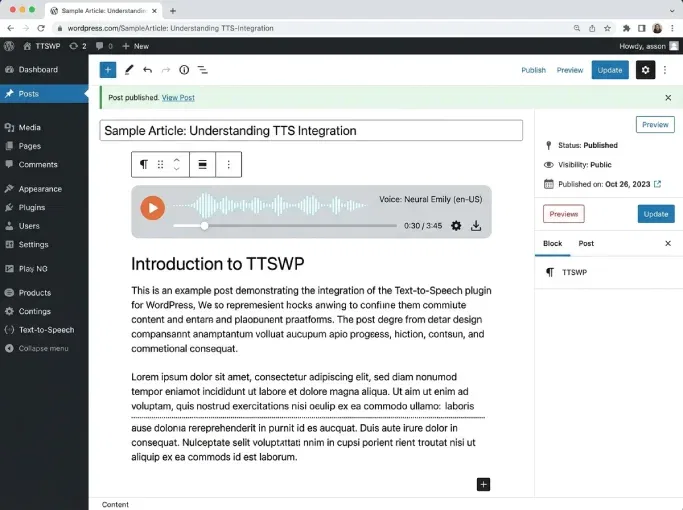
The setting that makes everything worth it. When auto-generate-on-publish is on, every new post you publish gets an audio version created in the background. No manual button to click. The player appears at the top of the article when readers open it.
Find the toggle in the plugin's audio setup section. Details are in the auto-generate docs. Generation usually takes under a minute for a typical 1,000-word post.
What about existing posts?
For older content, use the bulk generation tool. Pick a category, a date range, or specific posts, and the plugin generates audio for all of them in one queue. Useful for archives.
Step 5: Place the player
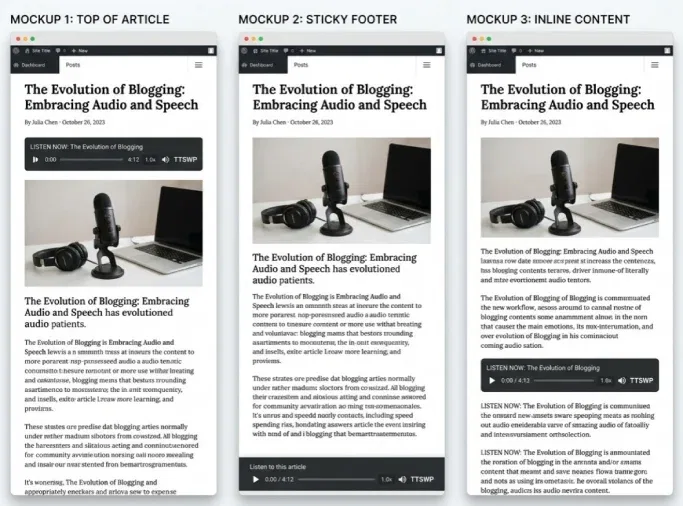
By default, the audio player shows above the post content. That works for most themes. If you want it somewhere else, you have three options.
- Default placement: top of post, no action needed
- Sticky footer player: stays visible while readers scroll, configured in the sticky footer settings
- Manual shortcode: drop the player anywhere using a shortcode, generated by the shortcode tool
The shortcode generator builds the exact syntax for you, so you do not need to memorize parameters. For Elementor, Divi, or Gutenberg block users, the page builder integrations page covers each one.
Comparing TTS approaches in WordPress
Three engine types compete for WordPress sites in 2026. Each has a different tradeoff between voice quality, cost, and offline capability.
| Engine type | Voice realism | Latency | Offline | Best for |
|---|---|---|---|---|
| Browser TTS (Web Speech API) | Low to medium | Instant | Yes | Quick accessibility fallback, no cost |
| Cloud neural TTS | Medium to high | 200-800ms | No | News, blogs, balanced quality and cost |
| Generative AI TTS (TTSWP, ElevenLabs) | High, near-human | 500ms-2s | No | Publishers, courses, branded content |
Browser TTS is free and works without any backend, but the voices are robotic and inconsistent across browsers. Cloud neural sits in the middle. Generative AI sounds the most natural and is the category TTSWP fits into.
What we found surprising in testing
Two things stood out when we ran TTSWP on real publisher sites.
First, the audio length is not the same as estimated reading time. A 1,000-word article reads aloud in about 6-7 minutes, which is longer than most reading-time estimates suggest. Listeners commit more time per article than readers do.
Second, caching plugins occasionally hide the player. If you use WP Rocket, LiteSpeed Cache, or W3 Total Cache, clear the cache after the first audio generation. The caching integration docs list the exact settings to whitelist.
Multilingual sites
If you run WPML, Polylang, TranslatePress, or Weglot, TTSWP detects the post language and picks a matching voice. You configure which voice each language uses once, then it works automatically.
When the player does not appear
Most often, this is one of three things. The post was published before auto-generation was turned on, so no audio exists yet. A caching plugin is serving an older version of the page. Or a theme is filtering out the content hook the player attaches to.
The player troubleshooting page walks through each cause. For audio that did not generate, the generation troubleshooting page covers credit limits, queue backlogs, and content length issues.
Frequently asked questions
How long does it take to add text-to-speech to WordPress?
Most setups take under 15 minutes. Five for installing the plugin and creating the account, five for picking a voice, and five for testing on a draft post. Bulk generation for an existing archive takes longer, but runs in the background and does not require you to watch it.
Do I need an ElevenLabs account?
No. TTSWP includes the voice engine through your TTSWP account, so you can start without any third-party signup. If you already have an ElevenLabs account and want to use those credits, the bring-your-own-key option lets you connect it directly.
Will text-to-speech slow down my WordPress site?
No. Audio generation happens on the TTSWP backend, not on your server. The MP3 file is stored and served from cloud storage, so your hosting does not handle audio delivery. The player itself is lightweight. Performance details are in the performance docs.
Does the audio update when I edit a post?
Not automatically by default, to save credits. You can regenerate audio manually after an edit, or enable automatic regeneration in the plugin settings. For posts that change often, manual control usually makes more sense than burning credits on every typo fix.
What languages are supported?
TTSWP supports 30+ languages through the generative voice engine, including English, Spanish, French, German, Italian, Portuguese, Dutch, Polish, Norwegian, Swedish, Danish, Japanese, Korean, Mandarin, Hindi, and Arabic. The voices page has the current list and shows which voices speak which languages.
Next step
Install the plugin from WordPress.org, connect it to a free TTSWP account, and publish one post with auto-generation on. Listen to the result. That single test answers more questions than any spec sheet, and the free tier exists exactly so you can do it without committing to anything.